Buzz LMS Integration with Storyboard That
Storyboard That integrates with Buzz! Check out this video on using Storyboard That with Buzz:. On your Buzz course dashboard, click on the left-hand menu and select "Editor".. Click on "Add activity…

Updated
by liane@storyboardthat.com
Storyboard That integrates with Buzz!
Check out this video on using Storyboard That with Buzz:
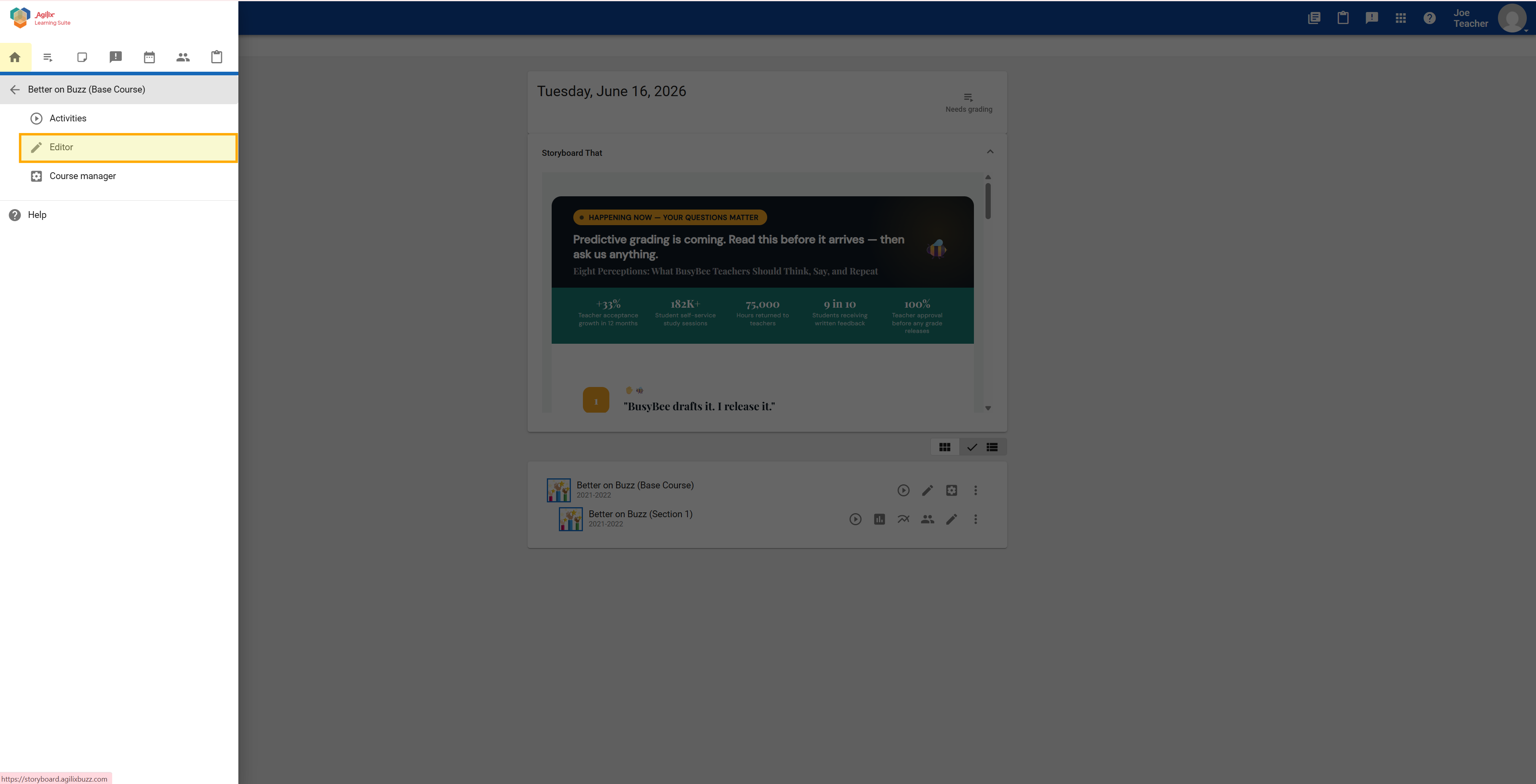
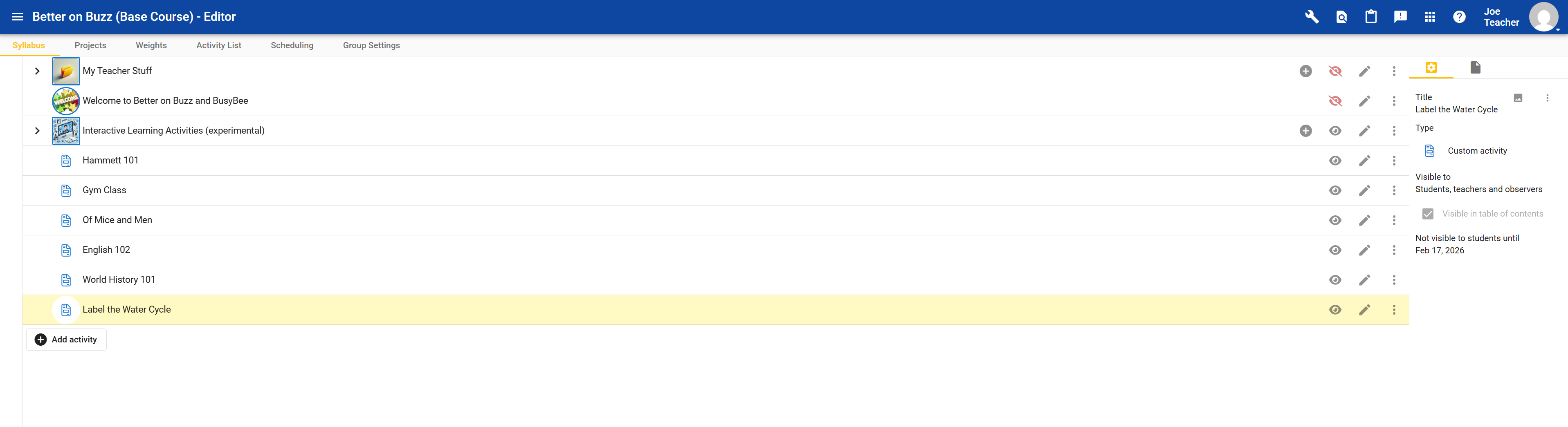
- On your Buzz course dashboard, click on the left-hand menu and select "Editor".
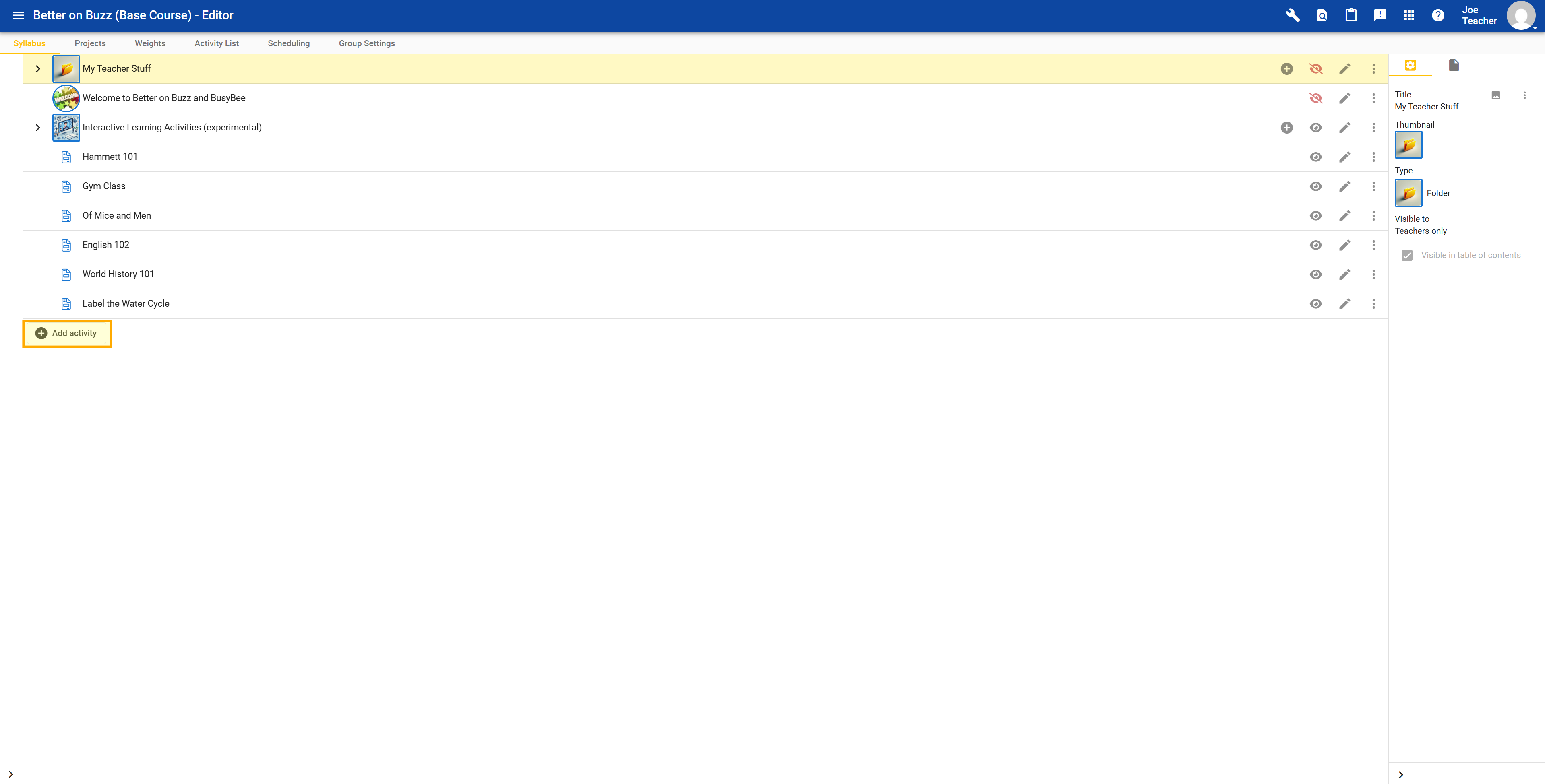
- Click on "Add activity".
- Under External Tools, find Storyboard That and click "Add".
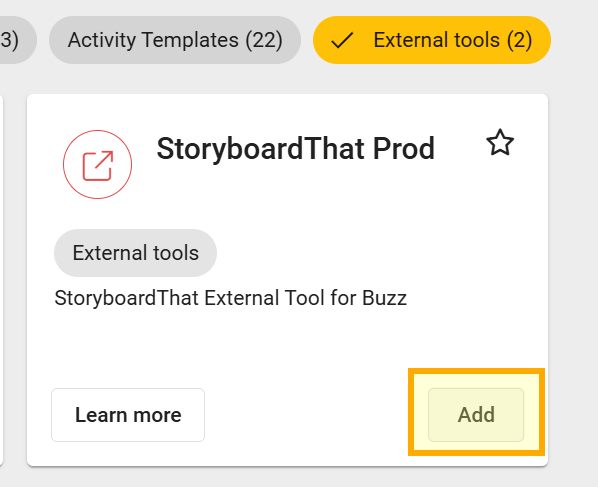
If you don't see Storyboard That in your external tools, your Buzz admin still needs to set up the integration.
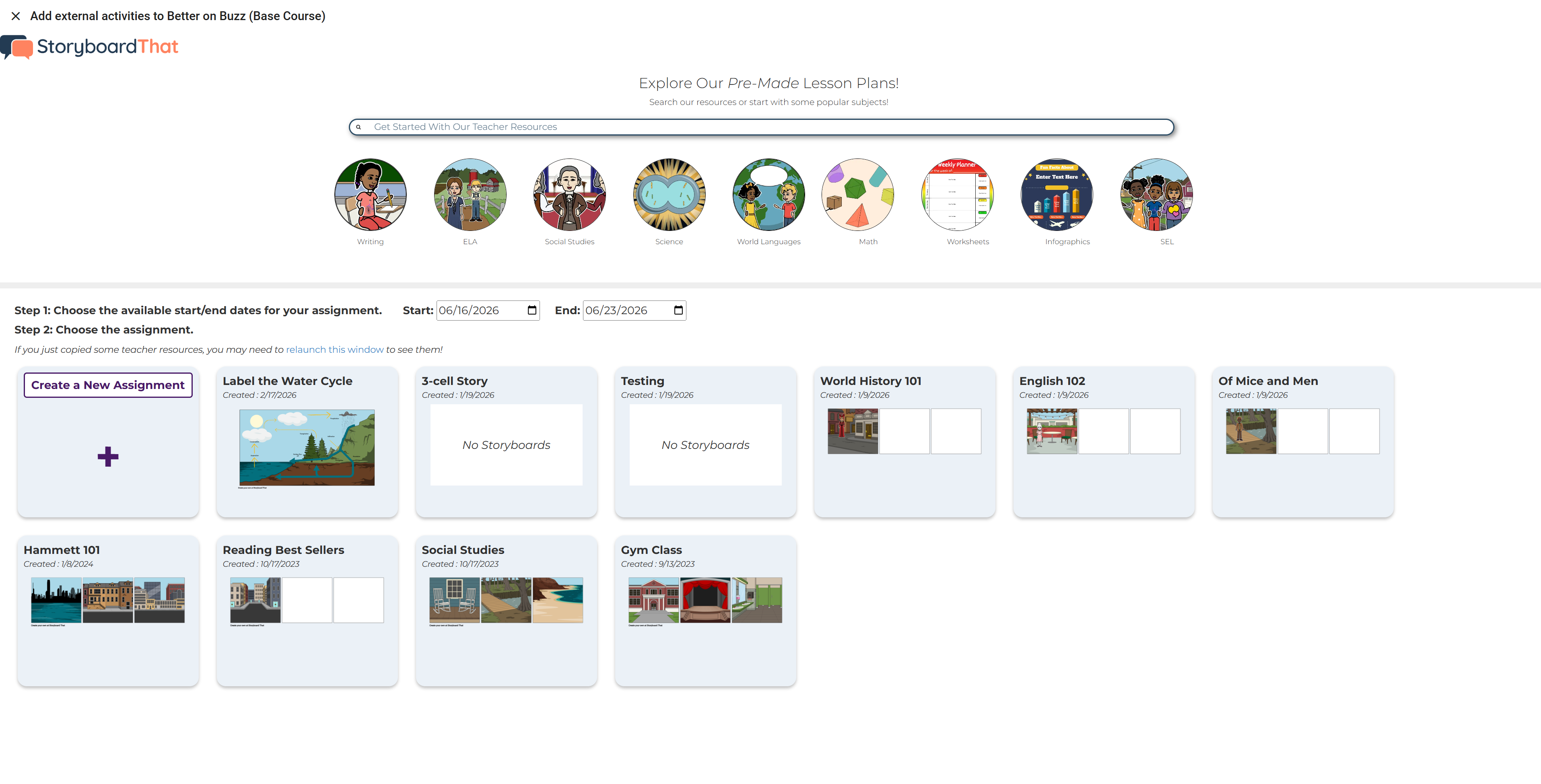
- From the Assignment Selector window that pops up, you can:
- Browse Storyboard That's resources,
- Make a new Storyboard That assignment from scratch, or
- Choose an existing assignment. (Assignments you previously copied from Storyboard That's Teacher Resources will be shown here!)
- The assignment will then appear under your course, where you can edit the assignment's instructions, due date, etc.
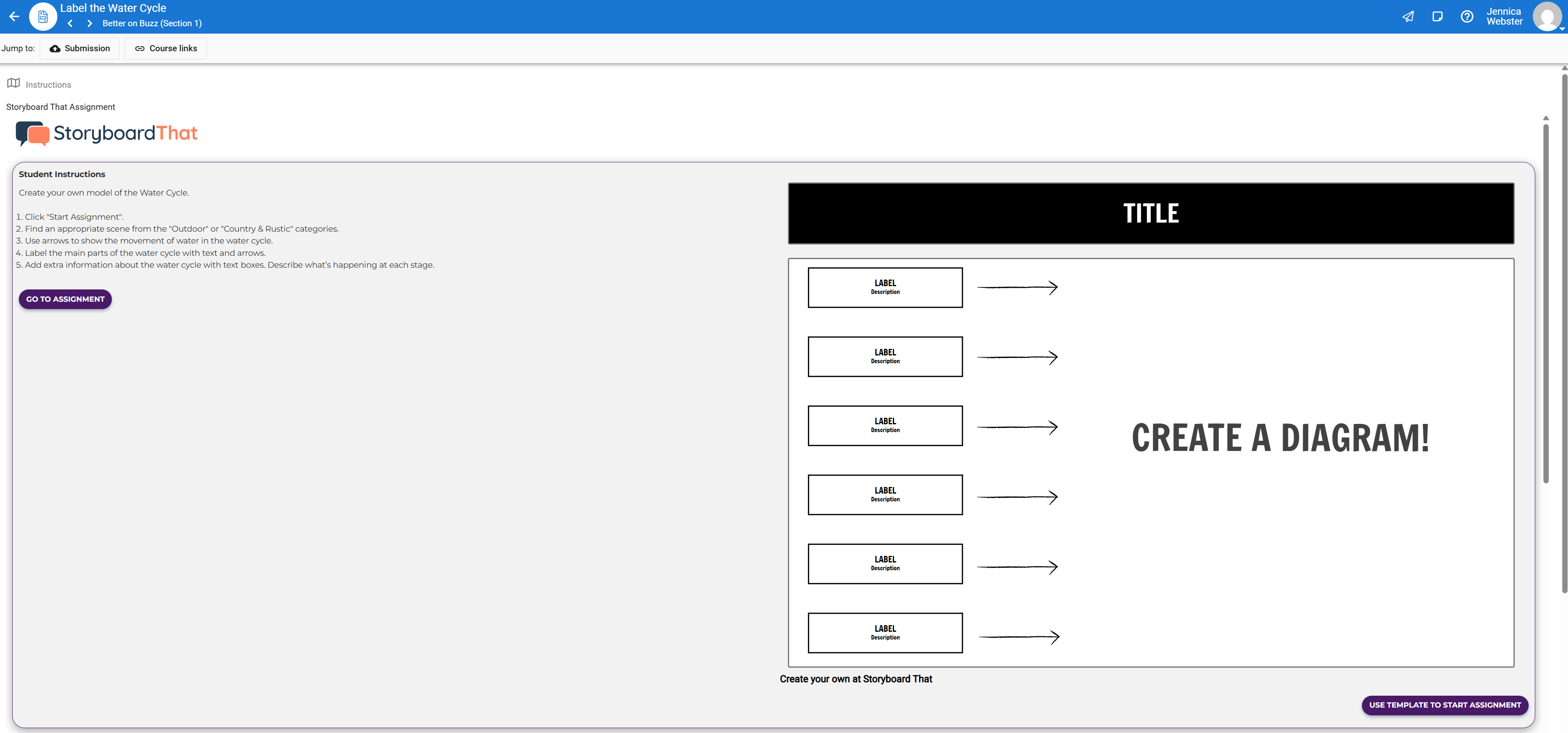
- Students will see the assignment in their course. They can choose "Use template to start assignment" or "Go to assignment" to begin. They will be taken to the Storyboard That Creator.
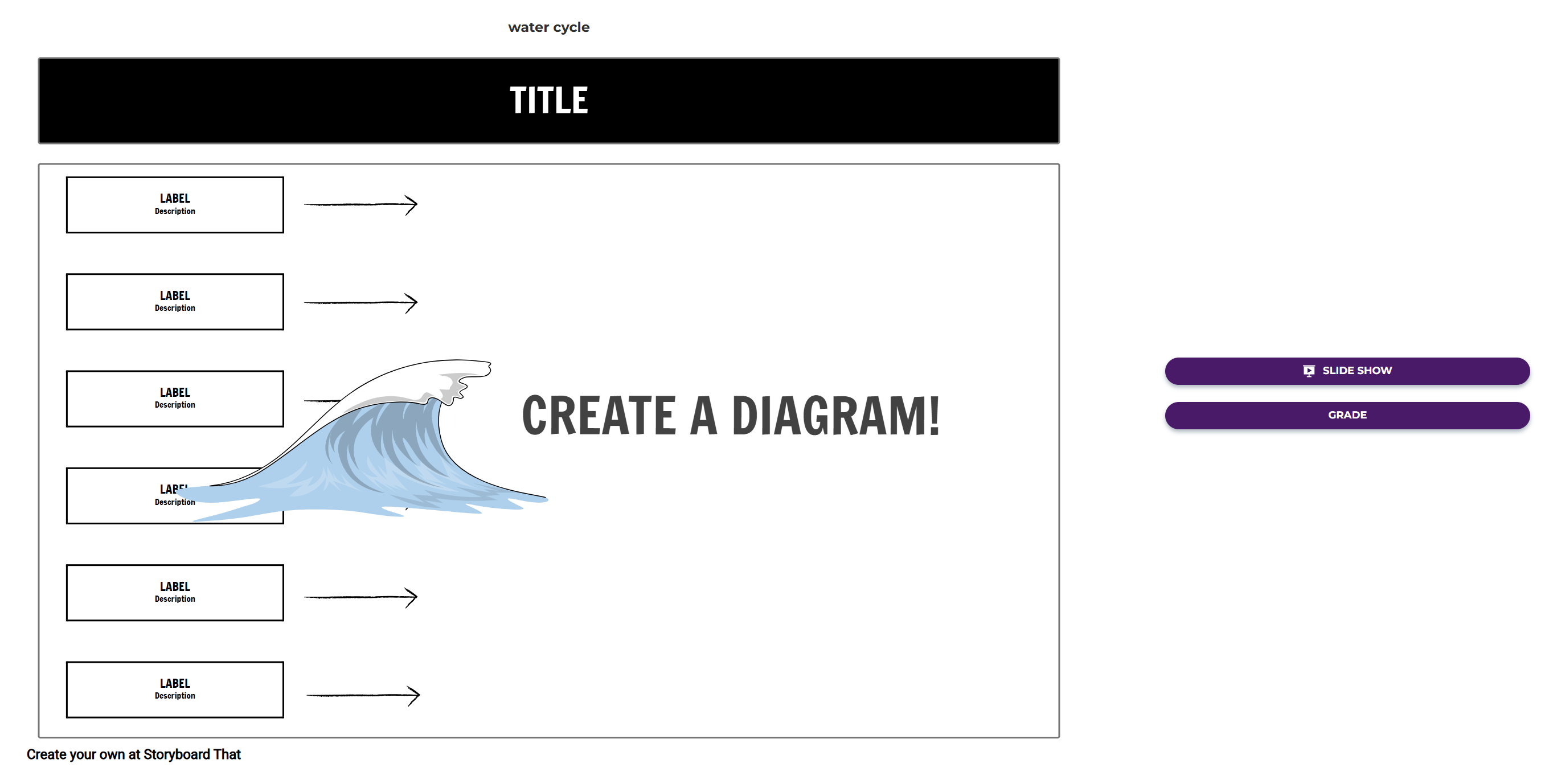
- The student's storyboard will automatically update when they make changes to the storyboard, and the teacher will be able to grade their submission in Buzz.
Be sure that each time a student wants to access Storyboard That, they access it through Buzz, not by going to Storyboard That's site. Otherwise, duplicate accounts may be created and students will not be able to see their work. If this does happen, reach out to support@storyboardthat.com with the name of the student and the email they used to log in and we can merge their accounts.

How did we do?
How to Add Storyboard That LTI 1.3 as an App to Canvas
How do I use Storyboard That in Schoology?
