Understanding the Overuse Popup
Why am I seeing the overuse popup? The "Looks like you're overusing your Storyboard That account!" popup appears when your Individual Teacher Account has more teachers or students than your plan incl…

Why am I seeing the overuse popup?
The "Looks like you're overusing your Storyboard That account!" popup appears when your Individual Teacher Account has more teachers or students than your plan includes. It's a friendly heads-up, not an error, and it's easy to fix.
Your Individual Teacher Account includes:
- 1 teacher or admin
- 3 co-teachers
- 200 students
If any of these numbers goes over the limit, you'll see the popup on your dashboard. This article explains how to read the popup and the quickest ways to get back within your plan.
Reading the popup
The popup compares what's on your account (You have) with what your plan includes (Your plan allows). The row that's over the limit is highlighted in orange, so you can see right away what needs attention.
Row | What it counts |
Teachers & admins | Users with their own full teacher or admin access on your account |
Co-teachers | Teachers who help with your classes without their own license |
Students | Students enrolled in your classes |
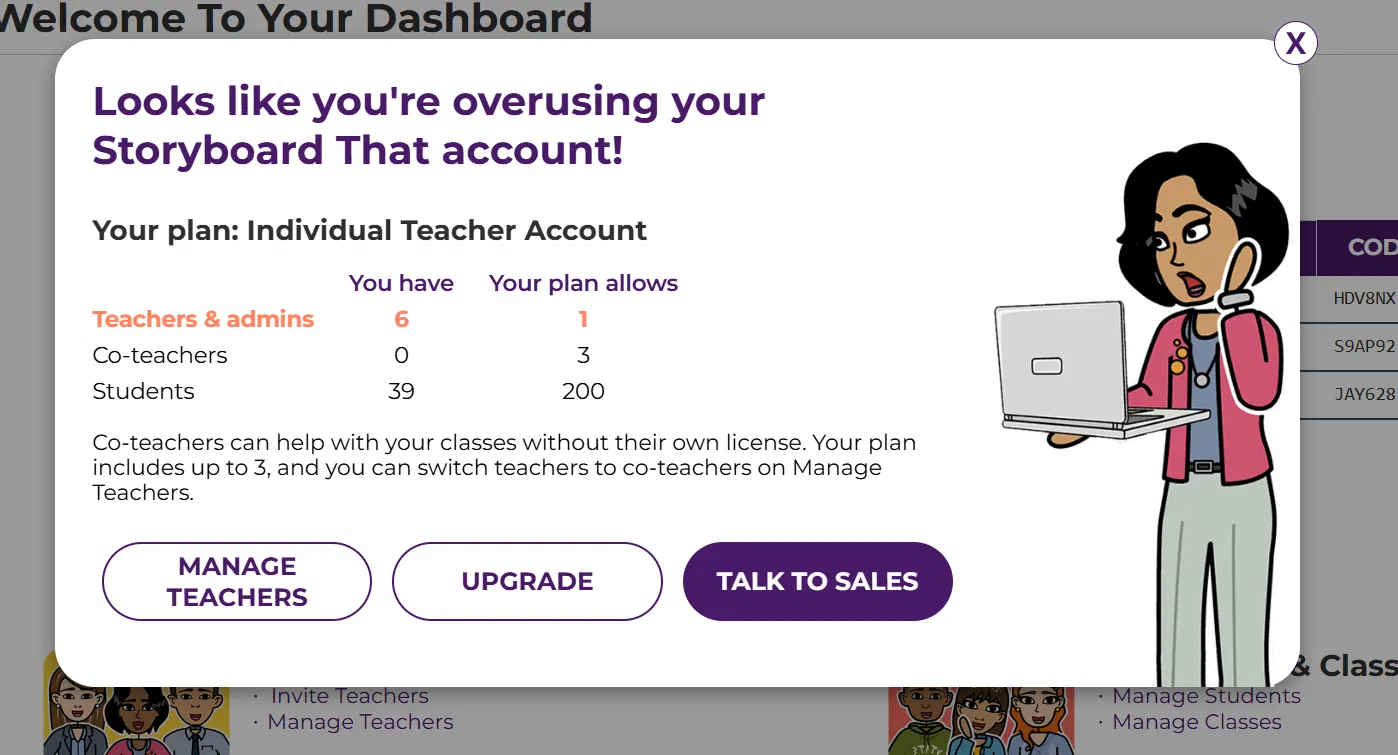
Example 1: Too many teachers. The account has 6 teachers and admins, but the plan allows 1. The popup shows a Manage Teachers button.
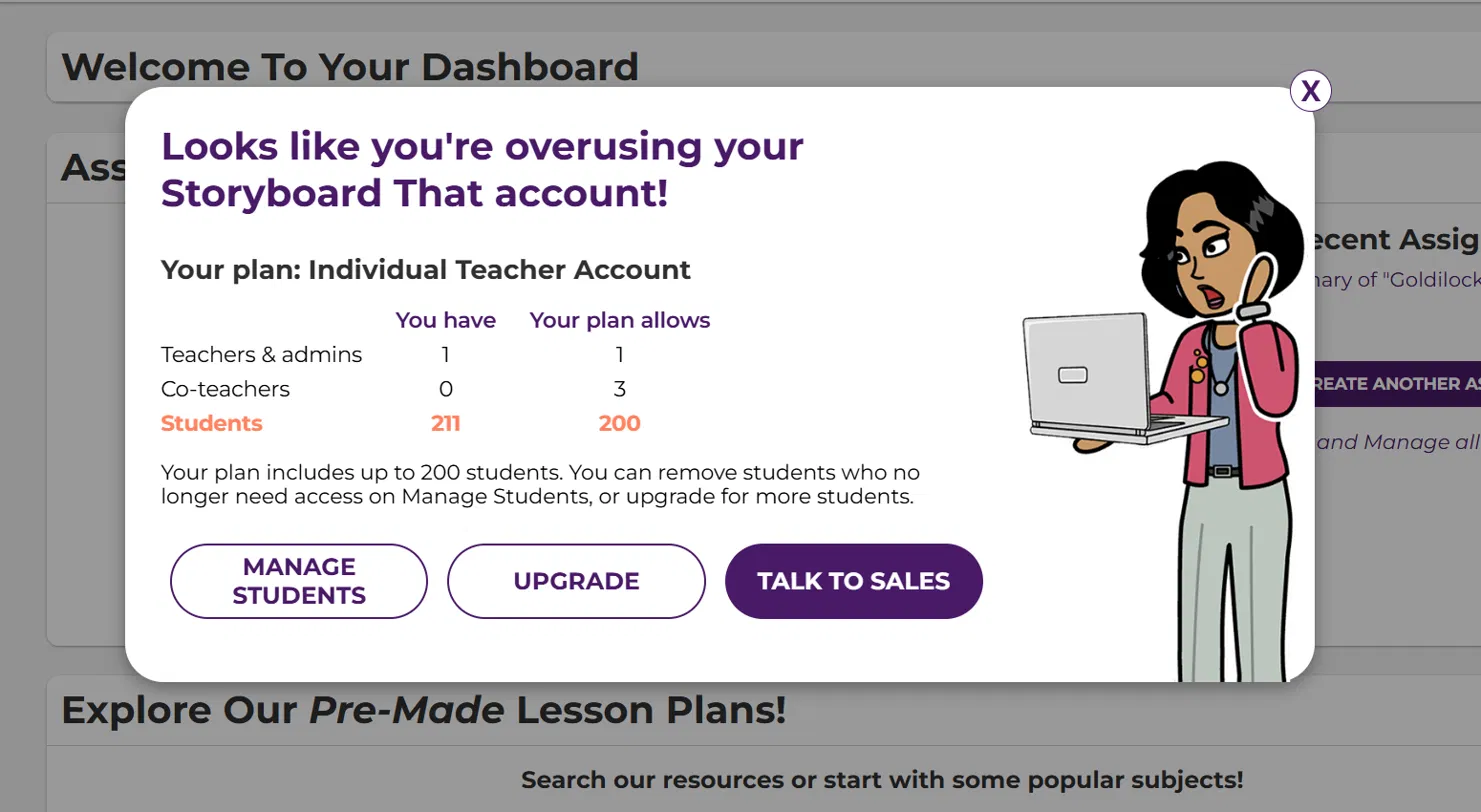
Example 2: Too many students. The account has 211 students, but the plan allows 200. The popup shows a Manage Students button.
If you have too many teachers
You can remove teachers who no longer need full access, or switch them to co-teachers (your plan includes up to 3). Removing a teacher is not the same as deleting one. Read the difference below before you start.
Remove vs. Delete: know the difference
Button | Enable Remove Teachers | Enable Delete Teacher |
What happens to the teacher | Moved off your account to a Free Account | Account is deleted |
Their storyboards, assignments and classes | Stay with the teacher in their Free Account | Permanently deleted |
Their students | Move with the teacher to their Free Account | Can also be deleted if not in another teacher's class |
Warning you'll see | "Removing [name] from your school will move them to a Free Account" | "Deleting [name] will delete all storyboards, assignments, and classes" |
To remove a teacher:
- Click Manage Teachers in the popup, or go to Manage Teachers from your dashboard.
- Below the teacher list, click Enable Remove Teachers. Make sure you don't click Enable Delete Teacher, which sits right next to it.
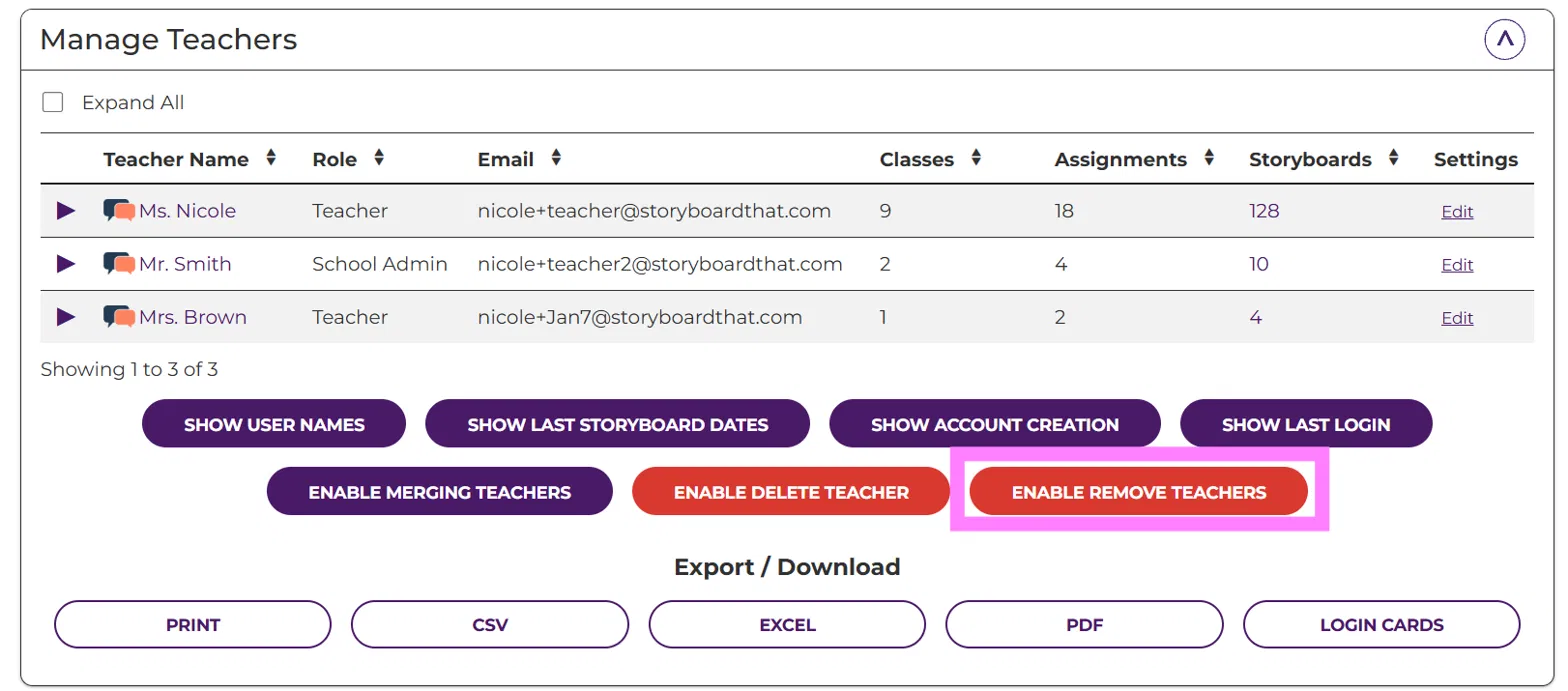
- A Remove Teacher column appears. Click Remove next to the teacher you want to take off your account. The account owner can't be removed.
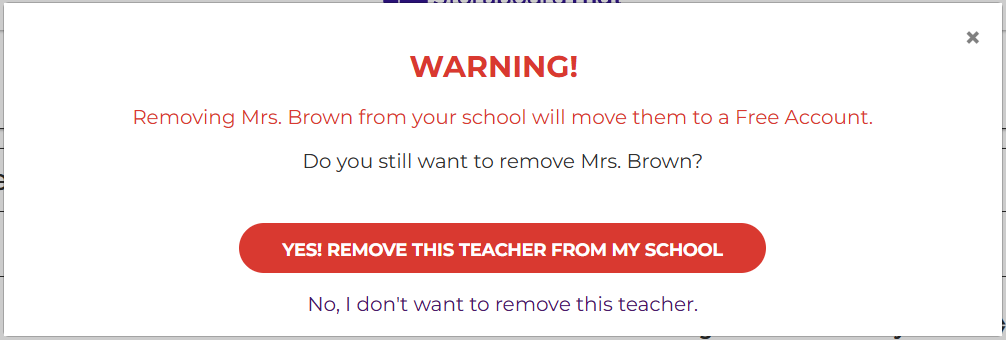
- Check that the warning says the teacher will be moved to a Free Account, then click Yes! Remove this teacher from my school.
- Repeat until you have 1 teacher or admin, then click Disable Remove Teachers.
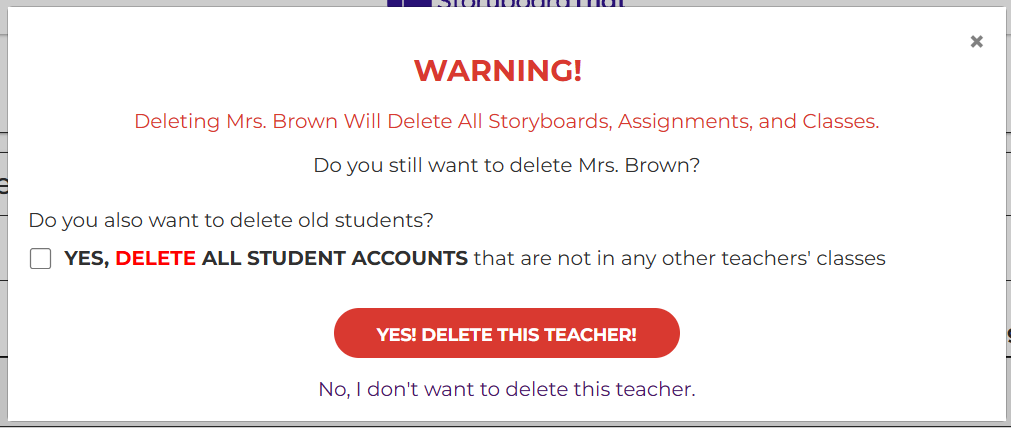
Don't use Delete to fix overuse. Delete permanently erases the teacher along with all of their storyboards, assignments and classes, and can also delete their students. If the warning you see says Deleting instead of Removing, click No, I don't want to delete this teacher and start again with Enable Remove Teachers.
This is the delete warning. Don't click Yes here!
To switch a teacher to a co-teacher instead: If the person still helps in your classroom, you can keep them on your account as a co-teacher rather than removing them. This is only an option if you have fewer than 3 co-teachers already.
- Go to Manage Teachers under the My Teachers tab.
- Click Edit next to the teacher.
- Change their role to Co-teacher and save.
If more than 4 people need access in total (1 teacher plus 3 co-teachers), you'll need a larger plan. Reach out to us at orders@storyboardthat.com to learn more.
For more on co-teachers, see Co-Teachers.
If you have too many students
Delete students who no longer need access, such as students from last year's classes or students who have moved.
To delete students:
- Choose how you want to delete them:
- One student at a time: click Edit next to the student, then delete them.
- Several students at once: click Enable Bulk Delete, select the students, and delete them together.
- Check that your total is now 200 or fewer.
For step-by-step instructions with screenshots, see Delete Student Accounts.
Before you delete students: Deleting a student also permanently deletes all of their storyboards. If you or your students want to keep any of their work, download or save it first.
Frequently asked questions
Do co-teachers count toward my teacher limit? No. Co-teachers have their own limit of 3 and don't count toward your 1 teacher or admin.
What's the difference between a teacher and a co-teacher? The teacher owns the class: they manage students and create and edit assignments. A co-teacher is another adult in that same classroom who needs to see student work, such as a special ed teacher, paraprofessional, or student teacher. Co-teachers can view student work on any assignment in the class. See Co-Teachers for more.
Will deleting a student delete their storyboards? Yes. Deleting a student permanently deletes all of their storyboards, so save anything you want to keep first.
Does my student count reset each school year? No. Your student count doesn't reset on its own. To stay within your limit, delete last year's classes at the start of each school year. See How do I delete a class? for steps.
I fixed my numbers but still see the popup. What should I do? Refresh the page. If the popup is still there, contact us at support@storyboardthat.com and we'll take a look.
How did we do?
Co-Teachers
